How to claim your Google My Business profile in 7 steps
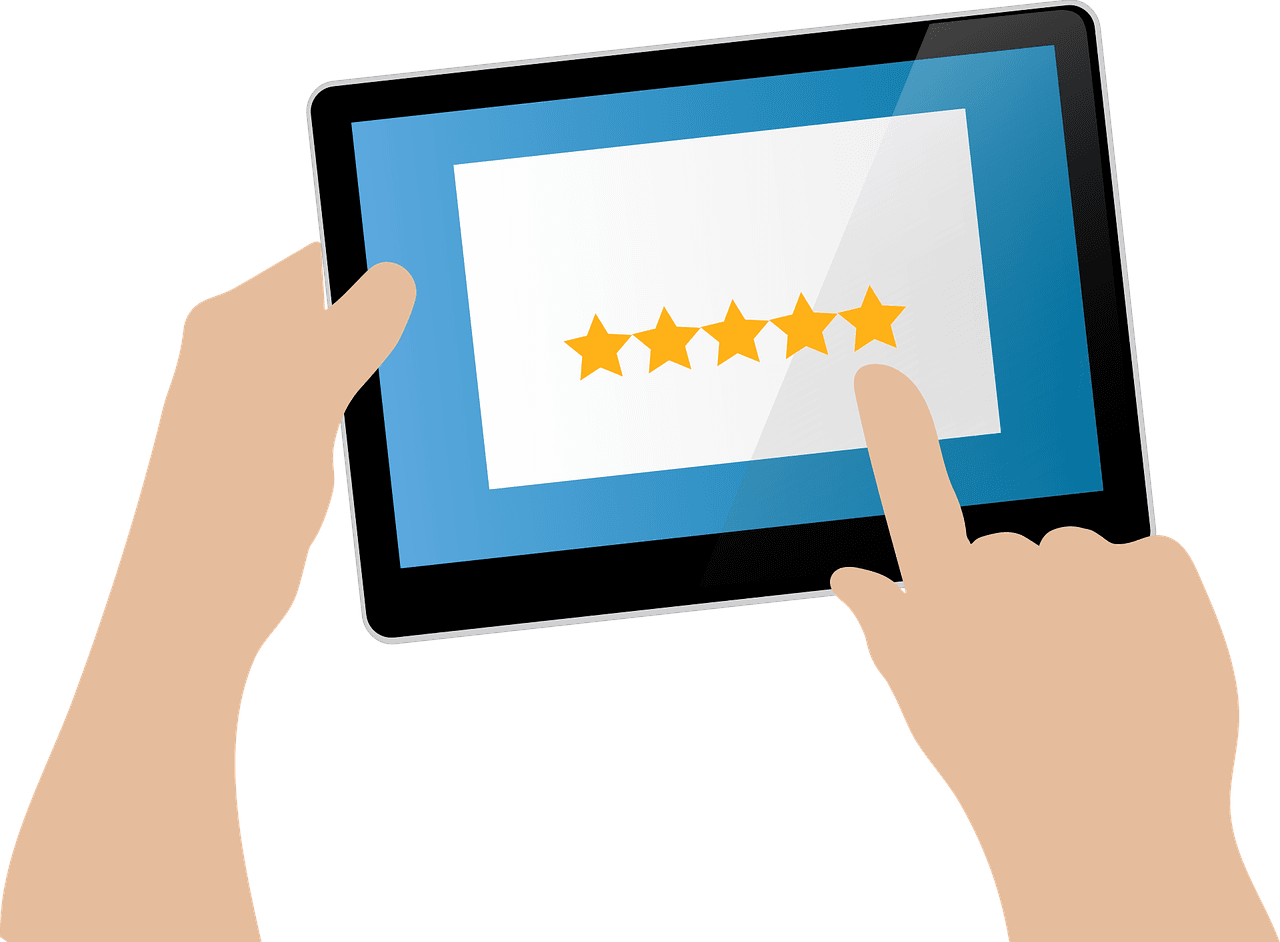
Claiming your Google My Business Page.
There are thousands of businesses out there who have a business profile that was automatically created on Google and are yet to claim the profile. Claiming an unclaimed Google My Business (GMB) page is an important step for businesses to take control of their online presence and ensure accurate information is displayed to potential customers. Here’s a step-by-step guide on how to claim an unclaimed GMB page:
Step 1: Search for Your Business
Go to the Google search engine and enter your business name. Look for the knowledge panel on the right side of the search results. If your business appears there with the label “Own this business?” or “Claim this business?”, it means that the page is unclaimed.
Step 2: Click on “Own this business?” or “Claim this business?”
Click on the link or button that prompts you to claim the business. This will usually take you to the Google My Business sign-in page.
Step 3: Sign in to Your Google Account
If you already have a Google account, sign in with your credentials. If not, you’ll need to create one. It’s recommended to use an email address associated with your business for easy management.
Step 4: Verify Your Association with the Business
Google requires verification to confirm that you are indeed associated with the business you’re trying to claim. There are several methods for verification:
- Postcard Verification: Google may send a postcard with a verification code to the business address listed. Once received, enter the code in your GMB dashboard to verify ownership.
- Phone Verification: In some cases, Google may offer the option to verify ownership via phone call or SMS. If this option is available, follow the on-screen instructions to receive and enter the verification code.
- Email Verification: If your business email is already associated with your Google account, Google may verify ownership via email. Check your inbox for instructions on how to verify.
- Instant Verification: Some businesses that have already been verified with Google Search Console may be eligible for instant verification. If your business qualifies, Google will automatically verify you as the owner once you sign in with the same email address you used for Search Console.
Step 5: Access and Update Your Business Information
Once you’ve successfully verified ownership, you’ll gain access to your Google My Business dashboard. Here, you can update crucial information about your business, including address, phone number, website URL, business hours, and categories.
Step 6: Optimize Your GMB Profile
Take advantage of all the features GMB offers to make your profile stand out. Add high-quality photos, respond to customer reviews, create posts to share updates or promotions, and utilize the Q&A section to provide helpful information to potential customers.
Step 7: Monitor and Maintain Your GMB Profile
Regularly check your GMB dashboard to ensure that your business information remains accurate and up-to-date. Respond promptly to customer reviews and inquiries to maintain a positive online reputation.
By following these steps, you can successfully claim an unclaimed Google My Business page and take control of your online presence to attract more customers to your business.
If you need any help claiming your profile or managing your reviews then get in touch today .


Trust Pilot

Trip Advisor

Booking
Airbnb

Open Table

Amazon

Ebay

App Store

Indeed

Yelp

Expedia

Yellow Pages

Hotels.com

Four Square

Zillow

Etsy
Glassdoor

WebMD
Please note that Review Velocity is no way affiliated with any of the brands above. Our platform uses integrations with all the above platforms to ensure we can import and respond to reviews from within our software.
Book some time with us today to discuss your business.
Satisfaction Guaranteed
14 Day Free Trial
Seriously, what have you got to lose? We are currently offering a 14 day free trial and a free onboarding call to get your business setup with no fuss!